Introduction
 This nonstatistical application is used in conjunction with QC-CALC Real-Time to quickly identify bad parts on a multiple-part inspection fixture. QC-Sort makes it easy for your operators to remove problem parts from the fixture by using color coded squares to identify the bad parts. QC-Sort is adjustable and easily configured to display the physical layout of your parts as they are fixtured.
How It Works
QC-Sort takes the data in QC-CALC and looks at it by a set number of parts that you configure. The parts are then laid out to match your fixturing. If any feature on a part is out of specification, that part is considered a bad part. QC-Sort displays the corresponding rectangle for that part in red. All good parts are displayed in green.
In addition, an optional history panel can show you (up to) the last 5 sets of previous results.
The picture on the right shows a 20 part fixture in a 5×4 arrangement. As can be seen, parts 16 and 20 are bad and should be thrown away or reworked.

General Features:
Create Your Plan
QC-Sort’s major strength is it’s ability to look at multi-part fixtures, determine the bad parts, and show you graphically which one are bad. In order to do this, all you have to do is create a Sort Plan.
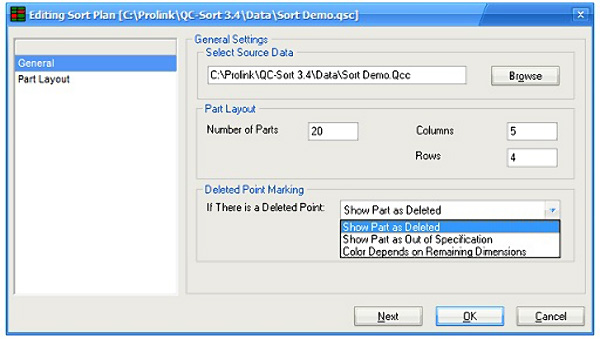
Simply point your Sort Plan to a QCC file, tell it how many parts to look at and specify the general layout of your fixture. To the right is an example where QC-Sort will view the last 20 parts in 5 columns and 4 rows.
Part Layout
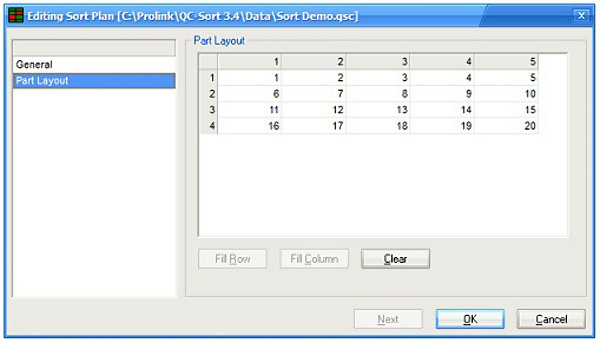
In the following screen, specify how the parts are literally laid out (shown at bottom right). For instance, they may be numbered in rows going from left to right or they may be numbered in columns going top to bottom. There are handy Fill buttons at the bottom to automatically fill the rows or columns as you go.
Measure Your Parts
Once you’ve specified the layout, you’re ready to measure. Measure the parts in your fixture and collect the data in QC-CALC. Then watch as QC-Sort displays the bad parts. Pull out the red ones and send for rework.
Partial Run
Need to measure less than typical? No problem! Simply choose Partial Run from the Tools menu and type the number of parts you will be measuring. QC-Sort will automatically adjust for the next run only and then return to normal.